Troubleshooting
We hope UFApps works flawlessly, but there’s a lot of ones and zeros flying around and the odds are that at least one person will have a problem. We created this section just for you, "Mr. If anyone’s going to have a problem, it will be me."
From time to time, you may experience unexpected or new behavior in UFApps, like a new screen display or momentary slowness. This may be a result of new programs or enhancements being made in response to student feedback; or because of extremely high usage of UFApps.
GeoStudio requires students to set up an account to obtain licenses.
- Create a MySeequent account at https://my.seequent.com/home
- Launch GeoStudio within UFApps
- In the "Select Method to Proceed" menu, select "Sign in to use your SeequentID licenses"
- A browser window will appear where you can login to your MySeequent account. Login and allow the prompt for the Connection client.
- GeoStudio will finish launching and you can select the Student license from the “Best Available License” dropdown.
Allow File Access
In order to open, save, and edit files from your local computer UFApps needs the ability to access your locally stored files. To achieve this, you will need to give the Horizon Client permission to access files on your computer. The first time you use UFApps you’ll being asked to grant access. If you choose to block access and would like to change it to permit access the steps below will help you achieve this.
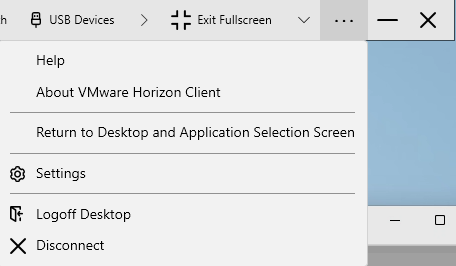
Once you are logged in to the UFApps Computer, on the bar located on the top of the screen, click on the 3 dots and click on Settings.
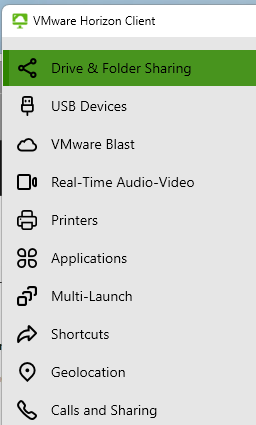
Once the settings are open, click on Drive & Folder Sharing.
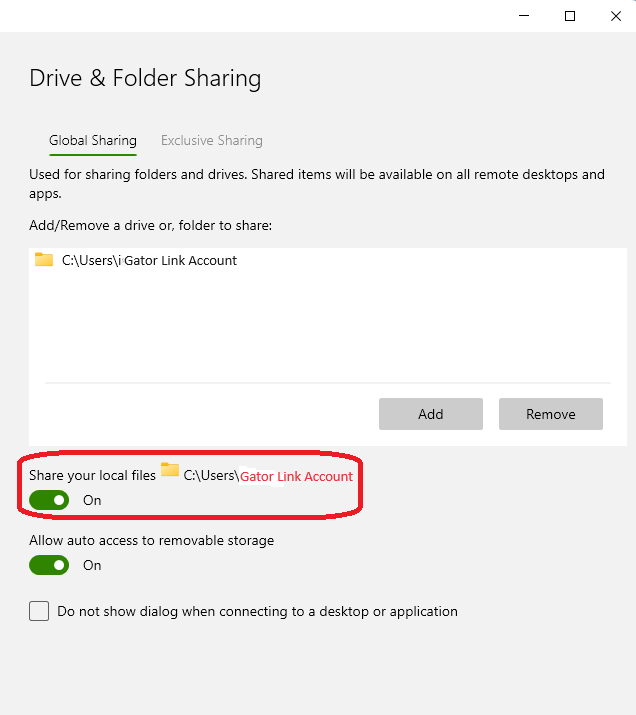
Make sure that the toggle switch inside of the red square is on. Once you turn it on you should be seeing the shared folder address as C:\Users\Gator Link Account.
Saving to your PC or Mac from the Desktop Client
Use these instructions if you’ve finished working on a file in UFApps and want to copy the file to your PC or Mac.
- To enable the Z drive for local file access, follow the steps at Granting File Access to UFApps
- Open the file in UFApps
- Select File, then "Save As" from the application’s menu,
- On the left Column, select UFApps.
- Double click the Z drive.
- Select "My Documents" (PC) or "Documents" (Mac) and hit the Save button.

When launching Minitab, you may be asked to "Register your product." We do not expect our users to register the Minitab product. In order to get past this screen, just click the option "Proceed without registering" next to the "Register Now" button at the bottom of the pop-up.

Get Help with UFApps
Submit a Help Request to request an application, report an issue, leave feedback, or request training.