Web Access & Desktop Client
Using a Web Browser
UFApps can be accessed through a web browser using Horizon HTML Access interface.
- Open a web browser and go to https://portal.apps.ufl.edu
- Select Horizon HTML Access.

- Log in with your GatorLink and password.

- After that, you’ll get prompted to use DUO to verify your identity.

- If this is the first time you are using DUO on this device, it will ask you if this is your Device or if you share it with other people.

- Once you made that selection, you’ll have to click Accept to get past the following announcement.

- After you log in, you will see a list of computers and Apps that you can choose from.
Download files to your computer
- Once you are logged in to one of the Horizon Desktops using the HTML Client, you’ll see a tab located on the far left of your screen as you can see on the screenshot below.

- Once you click on it the menu will expand. At that point you’ll see the button to initiate either an upload or a download as you can see on the screenshot below.

- After you click on it, the menu will open to Download or Upload a file from or to your local computer.

- If you want to download a file to your computer, after you have this menu open, you’ll have to open the location where the file you want to transfer is located, click on it and then with your keyboard press the combination of the Control Key + C or if you have a Mac the Command Key + C. Once you do that, the download screen will change to look like the Image below. After that click on the Down Arrow to download it to your computer. The file will be located in your Downloads folder on your local computer.

Upload files from your computer
- Once you are logged in to one of the Horizon Desktops using the HTML Client, you’ll see a tab located on the far left of your screen as you can see on the screenshot below.
- Once you click on it the menu will expand. At that point you’ll see the button to initiate either an upload or a download as you can see on the screenshot below.
- After you click on it the menu will open to Download or Upload a file from or to your local computer. At this point, click on Upload and then you can either click on Choose Files or Drag the file over to the upload window.

- Once you do that, a file explorer window will open, browse to the location where you have the file you want to upload. Click on it and select open.

- Once you are done uploading your file, said file will be located in your Documents folder.

Desktop Client
Important: Be sure to follow all the instructions below to successfully set-up your Horizon Client.
UFApps can be accessed using the full Horizon Full Client.
- Open a web browser and go to https://portal.apps.ufl.edu
- Choose Click Here to Download Horizon Client

- Or you can click the following link to get to the page to download the Client: Download Horizon Clients
Download for Windows
- Click Go to Downloads under Horizon Client for Windows

- Click Download Now

- After downloading, run the installation file and install the client. The installation will put the Horizon client on the desktop.
Download for MacOS
- Click Go to Downloads under Horizon Client for Mac

- Click Download Now

- After downloading, run the installation file and install the client. The installation will put the Horizon client in applications.
To Configure the Client
- Run the Horizon Client.
- The first time you run the client. It will ask you to click on "Add Server".

- Click Add Server and enter the "Name of the Connection Server": https://portal.apps.ufl.edu

- On the next screen, enter your GatorLink and password.
- After that, you’ll get prompted to use DUO to verify your identity.
- If this is the first time you are using DUO on this device, it will ask you if this is your Device or if you share it with other people.
- Once you made that selection, the first time you do this (or if you clear your browsing history) you'll be asked for permission to open the app. If you don’t want to see this message again, make sure to check the box before clicking Open.

- Once the App opens, you’ll have to click Accept to get past the following announcement.
- After you click accept, you will see a list of computers and Apps that you can choose from.
Opening the Horizon Client after it is installed
After installing the client, you won't have to open the portal on the web browser anymore.
- Click on the icon for Horizon Client.

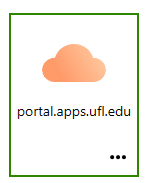
- Double Click on the portal.apps.ufl.edu icon
- Log in with your GatorLink and password.
- After that, you’ll get prompted to use DUO to verify your identity.
- If this is the first time you are using DUO on this device, it will ask you if this is your Device or if you share it with other people.
- Once you made that selection, the first time you do this (or if you clear your browsing history) you’ll be asked for permission to open the app. If you don’t want to see this message again, make sure to check the box before clicking Open.
- Once the App opens, you’ll have to click Accept to get past the following announcement.

- After you click accept will see a list of computers and Apps that you can choose from.
Important: First time accessing UFApps? Be sure to follow our installation instructions. The instructions below are only for clients already configured.
- Click on the icon for Horizon Client. The icon on your Desktop will look like the one below.
- Double Click on the portal.apps.ufl.edu icon. This is the one that you configured when you’ve installed the client. It looks like the image below.
- Log in with your GatorLink and password.
- After that you’ll get prompted to use DUO to verify your identity.
- If this is the first time you are using DUO on this device it will ask you if this is your Device or if you share it with other people.
- Once you made that selection, the first time you do this (or if you clear your browsing history) you’ll be asked for permission to open the app. If you don’t want to see this message again, make sure to check the box before clicking Open.
- Once the App opens, you’ll have to click Accept to get pass the following announcement.
- After you click accept will see a list of computers and Apps that you can choose from.
In order to open, save, and edit files from your local computer UFApps needs the ability to access your locally stored files. To achieve this, you will need to give the Horizon Client permission to access files on your computer. The first time you use UFApps you’ll being asked to grant access. If you choose to block access and would like to change it to permit access the steps below will help you achieve this.
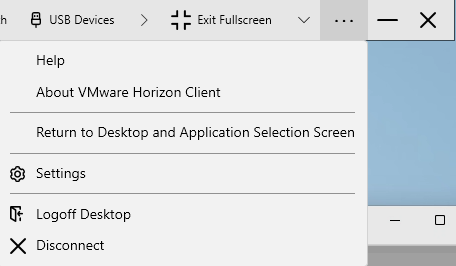
- Once you are logged in to the UFApps Computer, on the bar located on the top of the screen, click on the 3 dots and click on Settings.
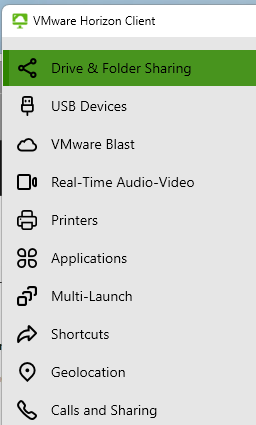
- Once the settings are open, click on Drive & Folder Sharing.
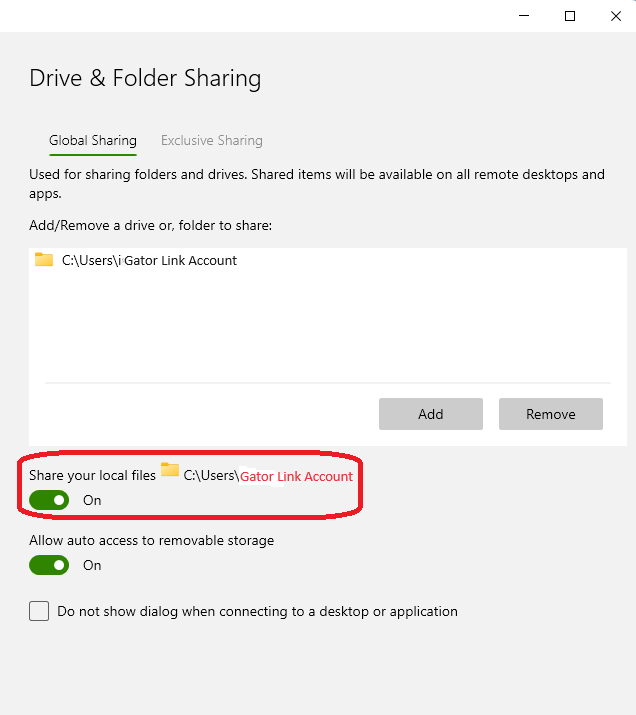
- Make sure that the toggle switch inside of the red square is on. Once you turn it on you should be seeing the shared folder address as C:\Users\Gator Link Account.
Use these instructions if you’ve finished working on a file in UFApps and want to copy the file to your PC or Mac.
- To enable the Z drive for local file access, follow the steps at Granting File Access to UFApps
- Open the file in UFApps
- Select File, then "Save As" from the application’s menu,
- On the left Column, select UFApps.
- Double click the Z drive.
- Select "My Documents" (PC) or "Documents" (Mac) and hit the Save button.

Get Help with UFApps
Submit a Help Request to request an application, report an issue, leave feedback, or request training.