Using Kumo
You can now access your UF OneDrive and Google Drive cloud storage on UFApps, just like you would access the M: drive!
Kumo is the name of the tool that will assist you with the initial setup, as well as add additional cloud storage in the future. We hope to add additional cloud storage options in the future. Stay tuned!
Microsoft has changed their policy and now requires application secrets to be renewed annually (previously they were valid indefinitely). If someone updates the secret/API key on the Kumo portal’s Admin page, users will need to re-link their storage accounts. You can check the validity of the application secrets directly in the Azure portal.
There are two ways to setup your Kumo profile:
- Launch Kumo profile setup from within your session
- Go directly to the https://kumo.apps.ufl.edu webpage before you start your session in UFApps
If you launched a session but never set up your Kumo profile, you may receive the message shown below. In this case, click on Setup. A browser window will launch the web page https://kumo.apps.ufl.edu where you can set up your profile.

Once the https://kumo.apps.ufl.edu web page loads, please follow the direction listed below.
To set up the service, simply go to https://kumo.apps.ufl.edu and click Log In button.

You will be redirected to UF’s authentication page. Login with your gatorlink credentials:

Once logged in, you will see your home page in Kumo with the available cloud storage services.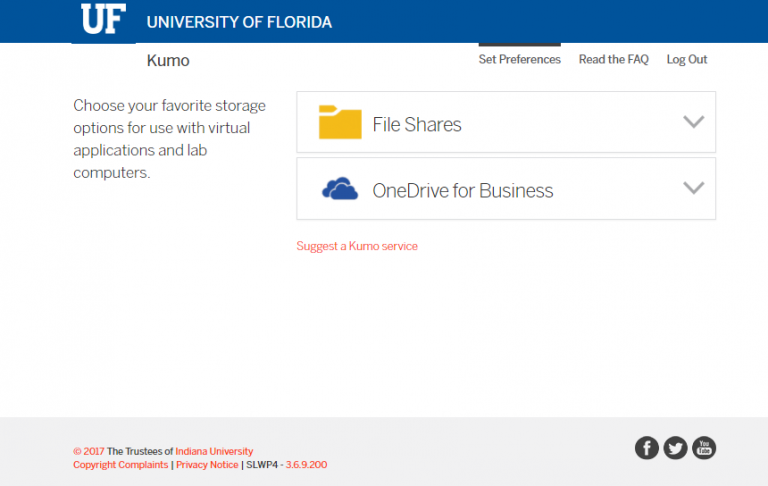
Currently, UF Kumo is configured with two cloud storage solutions:
- UF File Shares (e.g. Departmental file shares)
- UF OneDrive for Business
You can now access your UF OneDrive cloud storage on UFApps, just like you would access the M: drive! OneDrive for Business is one of the cloud storage solutions that has been approved for usage in UFApps by UF Information Security Office. However, please keep in mind that such usage is bound by UF's Data Classification Guidelines and Policy. You can find both the guidelines and the policies on UF's Policy website.
To map your OneDrive for Business, login to your Kumo portal.
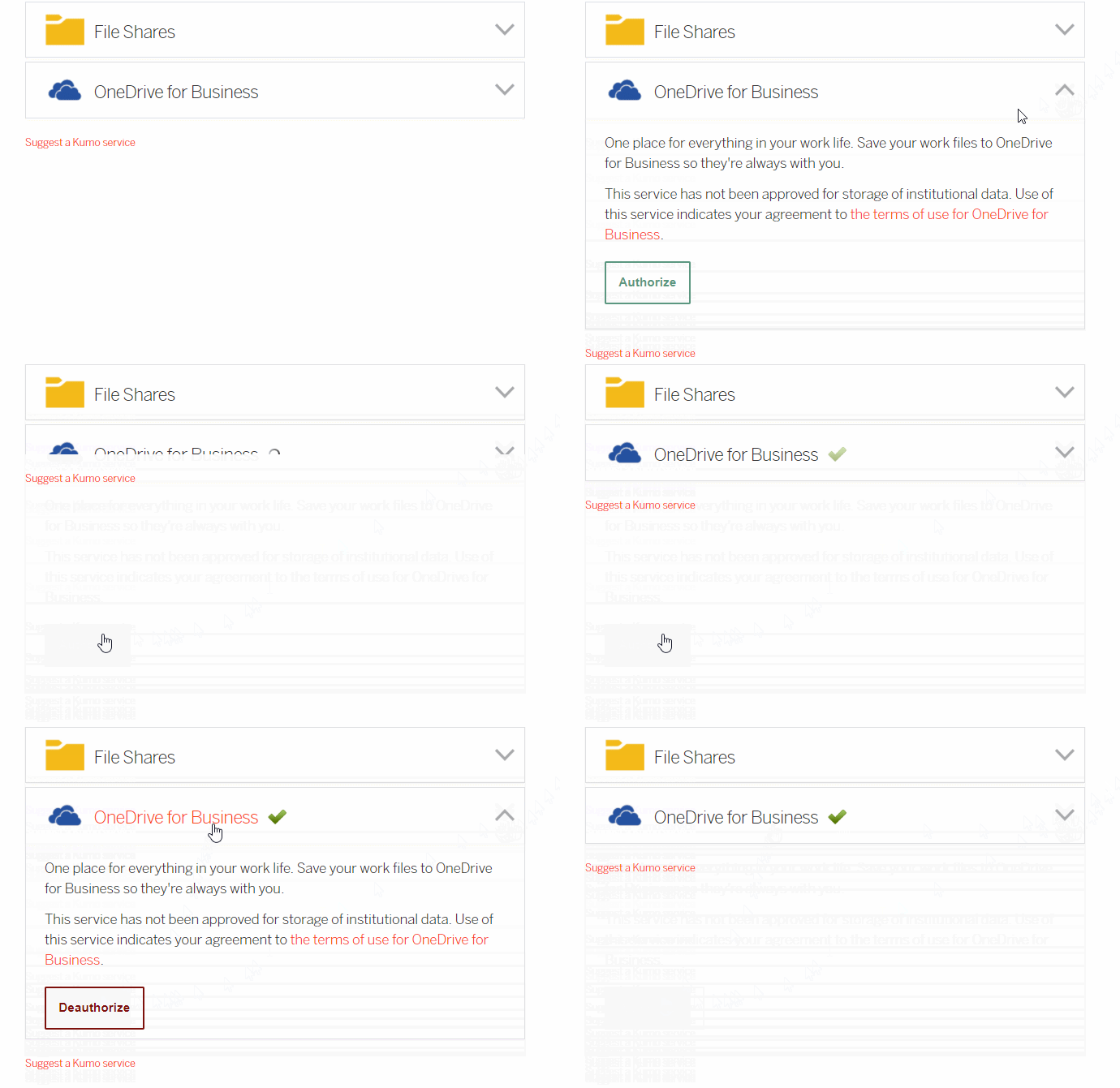
Then, click on the icon to span the OneDrive for Business section and click on Authorize. If it is successful, you should see a green check mark next to OneDrive for Business title.
Login to UFApps and launch the desktop shorcut "M Drive – UFApps". Browse to UFApps and you should see your OneDrive for Business mapped as the W Drive.

You will also be able to see the drive under Network locations in UFApps and from any application you launch.
File Shares can be your departmental file shares used for specific purposes such as storing learning material. However, please keep in mind that such usage is bound by UF’s Data Classification Guidelines and Policy. You can find both the guidelines and the policies on UF's Policy website.
The guideline can be found at . The policy can be found at
To map your File Share, login to your Kumo portal.
Then, click on the icon to span the File Shares section and enter the path provided by your professor or Department IT. The path should look like the following: \\filesharename\share\. Once you finish inputting the path, click on the plus button to add it.

Login to UFApps and launch the M Drive. Browse to UFApps and you should see the File Share mapped. You will also be able to see the drive under Network locations in UFApps and from any application you launch.
Currently, only UF OneDrive for Business is available. We plan to add additional UF approved cloud storage solutions in the near future.
Please keep in mind that the usage of cloud storage has to abide by UF’s Data Classification Guidelines and Policy. You can find both the guidelines and the policies on UF's Policy website.
No. The service can only be used on UF computers due to technical requirements.
Get Help with UFApps
Submit a Help Request to request an application, report an issue, leave feedback, or request training.