
Webex E911
Emergency 911 calling is supported through the Webex desktop app
Key Facts
- You are responsible for keeping your emergency address information accurate at all times.
- Calls without an assigned location will delay emergency response and will incur a fee to the university.
- Cisco Jabber does not have E911 capabilities and is no longer supported. If you are still using Jabber, please migrate to the Webex app immediately. See the Webex FAQ page for more information.
To Make a 911 Call
- Always enter your current address location when prompted (details below)
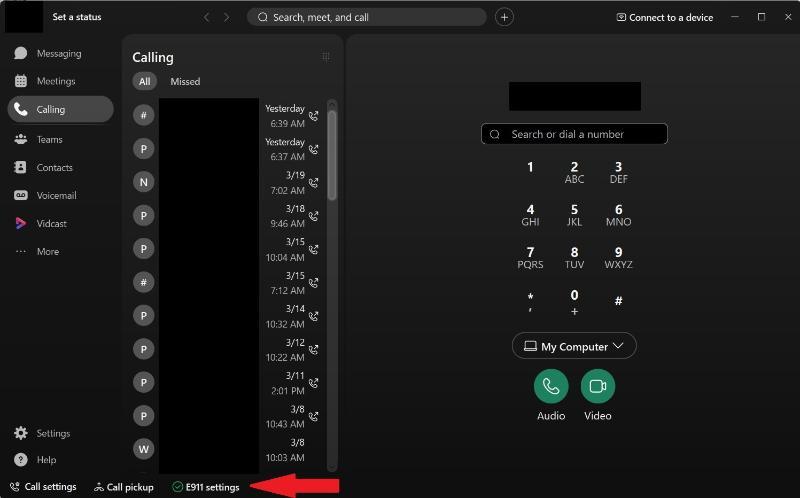
- Ensure green ✓ is showing in the E911 Settings on the bottom of the Webex client
- Dial 911 in Webex
- Stay on line and confirm location with dispatcher
Important:
- If an ❌ is showing, click 'E911 Settings' and enter your location information (steps below) or use another phone to dial 911, such as a mobile device.
- It is recommended to place 911 calls from a cell phone when possible, because mobile phones can automatically provide a precise location using the device built-in GPS
- If you have accidentally dialed 911, DO NOT hang up. Stay on the line and inform the agent that you did not intend to dial 911.

E911 Location
The E911 service status is displayed in the Webex app footer.
- The Webex app E911 service prompts to enter your location when first enabled or a new network is detected.
- It automatically detects when you change work locations and requires you to update your address.
- If you return to a location that you've already saved, the Webex app automatically uses the saved location information and no action is required.
To view or update your location address information, click the "E911 Settings" label displayed in the Webex app footer.
Determining Your Address Location
There are various resources available to help you identify the correct address information within the UF Gainesville campus and its remote locations.
Campus Map
- Visit campusmap.ufl.edu and type your building name in the search bar to find its address.
- If you're unsure of your location, you can visit campusmap.ufl.edu in your mobile phone, and select the teardrop location icon in the upper left side. This will automatically find your location using the device's GPS.
- Select your building to display its street address
GatorSafe App
- The UF GatorSafe app is available in the Apple App Store and Google Play.
- Visit the GatorSafe webpage for help and download information
Finding your location in the GatorSafe app
- Install the GatorSafe app available in the Apple App Store and Google Play
- Open the GatorSafe app
- Select "Safety Toolbox"
- Scroll down to Maps and select "Campus Map"
- Tap the location icon in the upper left side
- If prompted, allow the app to use your device location services
- Tap the building displayed in the map to view its street address location
Apple and Google Maps
- Built-in and downloadable map apps for mobile phones, such as Google Maps or Apple Maps, can be used to identify your location's address.
Entering your Address
After you have determined your location, enter the address in the "Edit emergency 911 address" window when prompted or clicking on the "E911 Settings" label in the Webex app footer.
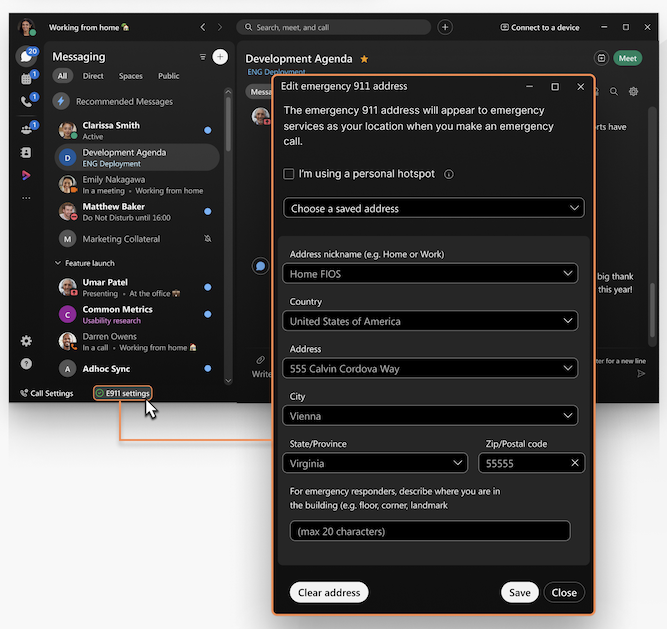
- The Address nickname field is a description of your location.
- After you enter your address, the location will be saved with the nickname making it easily accessible in the future with the "Choose a saved address" pull down menu.
- The Address, City, State and Zip must be complete and follow the standard US format.
- The last field labeled "For Emergency Responders,..." allows you to enter details about your location, such as "Tigert Hall Room 500" or "Home office in basement."
- Emergency responders rely on the address information you enter; include helpful landmark information when applicable.
- After all fields are completed click on Save to make it your active 911 location and store it for future use.
- If you receive an error indicating "Something went wrong. Please try again." when saving the address: Verify that the street location you have entered in the Address field is correct by using one of the methods in the 'Determining Your Address Location" section above.
Remember that you are responsible for keeping your emergency address information configured and at all times.
How Webex E911 Works
When dialing 911 in Webex, the app uses the address information configured in the 'E911 Settings' to route the call to the closest assigned emergency response center for your location. It also presents that same address information to the agent answering the call, who will ask you to confirm your location.
If there is no address configured in the Webex app, the call will be routed to a national Emergency Call Center operator who will ask you for your exact address and callback number, then manually transfer the call to the correct 911 Center (i.e. PSAP) for you location. This can delay emergency responses and will incur a fee to the university.
Best Practices
- Verify your emergency location every time you change rooms, floors or buildings.
- Keep addresses complete and precise: street address, building, floor, room, city, state and ZIP, plus helpful landmarks.
- Emergency responders rely on the address you enter; include helpful landmark information when applicable.
Important Reminders
- You must keep your emergency location accurate at all times.
- Always enter your current address when prompted. The app will remember it for that network.
- Calls to 911 through Webex without an assigned location can delay emergency responses and will incur a fee to the university.