Qualtrics Informed Consent Tips
The U.S. Department of Health and Human Services Office for Human Research Protections (OHRP) has issued guidance regarding the use of electronic informed consent. The information below highlights relevant Qualtrics features to support compliance with these guidelines. Further details are provided in the FAQ below. See the comparison table for an overview of how Qualtrics compares with other tools available to the UF community.
Relevant Features
Single Sign-On with Gatorlink username and password can be enabled (see FAQ: How do I require a GatorLink login and capture metadata in Survey Flow?). When sending to non-UF people, instead of using an anonymous link, distribute the survey using Qualtrics' mailing list feature. This generates a unique, trackable link tied to the person's specific email address, providing a basic audit trail of identity (add Set Embedded Data element for Recipient Email). Ensure Qualtrics is recording the IP address, timestamp, and duration of the survey to prove when and where the consent was executed (Anonymize responses in Survey Options > Security should be “Off”).
To capture a drawn or typed signature. Above this you can display the Informed Consent document and include a download link for it (see FAQ: What HTML is needed to display a PDF within the Signature question? and FAQ: How do I adjust the settings so participants can download a copy of the Informed Consent?).
To explicitly capture the signor's typed name and the minor's name (if needed).
Text entry or Calendar to capture the current date for the signature field. Right clicking the Signature question to Add JavaScript is also an option for Advanced users.
Ensure all consent-related questions (agreement radio buttons, name, signature) are set to "Force Response" so they cannot be bypassed.
Typical best practice is to create 2 surveys, the Informed Consent and the research items, so there is no connection between a particular respondent and their response. When you enable the “End of Survey” element in the Survey Flow and customize the workflow, you can set an End of survey message of “Redirect to URL.” The Website URL field can be populated with an Anonymous link to the research survey, so participants are seamlessly linked from IC to research questions.
Use “End of Survey” block in the Survey Flow to customize a workflow of “Show response summary” and check “Show response summary before completing the survey” and enable the Back button for editing (see FAQ: How do I allow participants to review their responses and make changes before submitting?).
OHRP mandates that participants receive a copy of the consent form. You can configure Qualtrics to automatically email a summary/PDF of the consent to the signor upon completion (see FAQ: How do I create a Workflow for sending a confirmation email?) and you can also provide a downloadable PDF link within the survey itself (see FAQ: What HTML is needed to display a PDF within the Signature question? and FAQ: How do I adjust the settings so participants can download a copy of the Informed Consent?).
You can send invitations via Qualtrics and retain its piped text with unique survey links per person or generate personal links for use in third-party mail systems.
FAQ
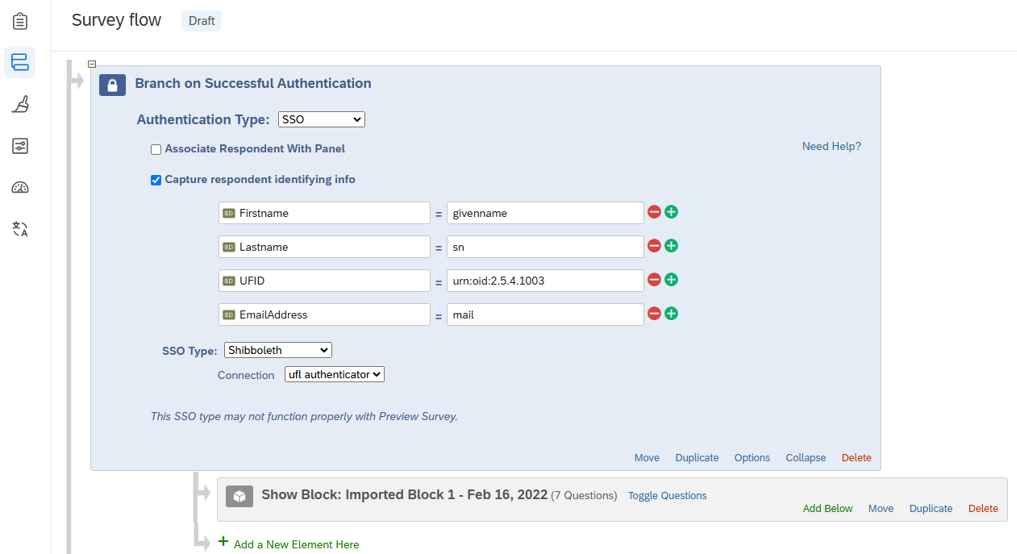
First element = Authenticator (Blocks are sub-elements)
- Type = SSO
- Check – Capture respondent identifying info (bold required)
- Firstname = givenname
- Lastname = sn
- EmailAddress = mail
- UFID = urn:oid2.5.4.1003
- Deptnum = urn:oid:2.16.840.1.113730.3.1.2
- Username = ufid
- SSO Type = Shibboleth, Connection = ufl authenticator
In the Signature question Rich Content Editor, you will first embed the document as a download link and then modify the HTML (Source button) to embed an iFrame of the document at the beginning.
Adjust this example below with your own document URL (Uploading your file in the Rich Content Editor) and change the language for your context.
Question Example:
Download link: Irb02 standard consent template 2
I acknowledge that I have read the statement linked above and am willing and eligible to participate in this FAKE study, including being 18 years old.
Copy the URL (bolded below) in the original HTML Source code for use in the next step:
<strong>Download link: </strong><a href="https://ufl.qualtrics.com/CP/File.php?F=F_1SODxiS6QJ6Br2C" rel="noopener" target="_blank">Irb02 standard consent template 2</a><br>
<br>
<strong>I acknowledge that I have read the statement linked above and am willing and eligible to participate in this FAKE study, including being 18 years old.</strong>
Edit to add the italicized portion below modified with your URL from the original source code:
<div id="pdfContainer" style="width:100%; height:450px; overflow:auto;"><iframe id="pdfContent" src="https://ufl.qualtrics.com/CP/File.php?F=F_1SODxiS6QJ6Br2C" style="width:100%; height:100%; border:none;"></iframe></div>
<br>
<strong>Download link: </strong><a href="https://ufl.qualtrics.com/CP/File.php?F=F_1SODxiS6QJ6Br2C" rel="noopener" target="_blank">Irb02 standard consent template 2</a><br>
<br>
<strong>I acknowledge that I have read the statement linked above and am willing and eligible to participate in this FAKE study, including being 18 years old.</strong>
Within Survey Options> Security> Uploaded files access, you should adjust the setting for Indicate who should be able to view files uploaded by respondents to be “Anyone with the link to the file”
Use “End of Survey” element in the Survey Flow to customize a workflow of “Show response summary” and check “Show response summary before completing the survey” to allow them to go back and make changes if needed before submitting.
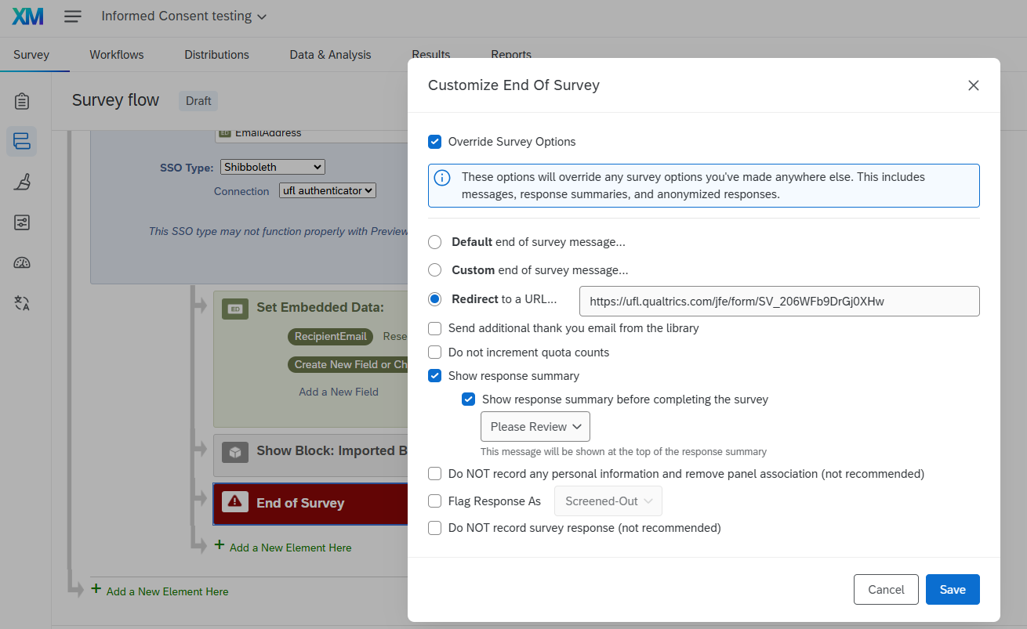
The Back button must also be enabled in the Survey Options > Responses section (it is not on by default). The Previous Button Text can be set in Look and feel > General.
Note: You need to have Email as captured info in the Gatorlink set-up above or by adding a Set Embedded Data element (Dropdown field selection > Survey Metadata > Recipient Email) in the Survey flow before setting this Workflow.
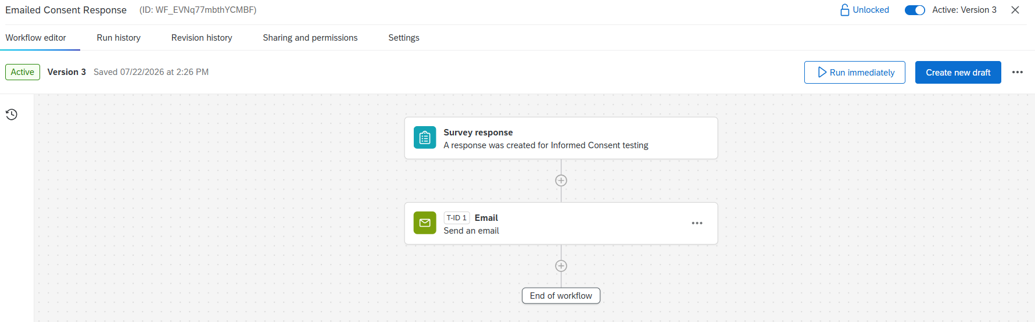
- Create a workflow button
- Started when an event is received
- Survey response
- Add a task
- Email
- “To” field if using SSO (otherwise select the Embedded Data Field > RecipientEmail): ${e://Field/EmailAddress}
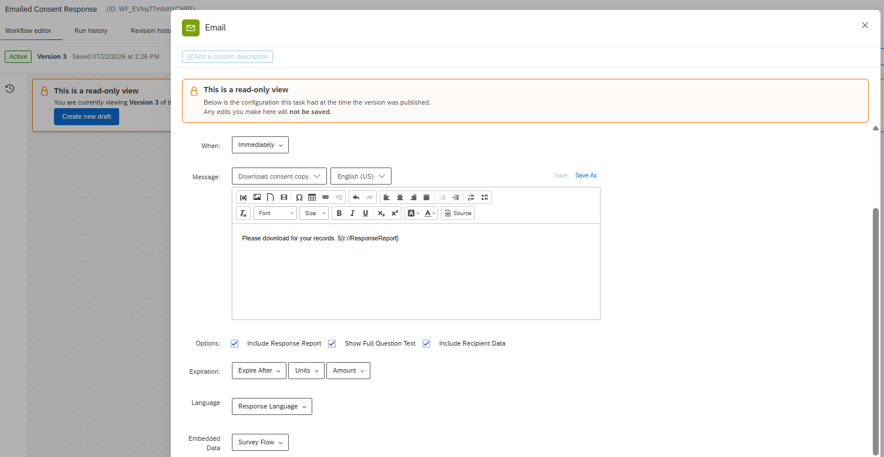
- Message body: Please download for your records.
- Check these Options:
- Include Response Report
- Show Full Question Text
- Recipient Data